Wireshark
Intro
The idea of this article is to provide an overview of Wireshark and some of the features it has and how to use them. You can download Wireshark for free from https://www.wireshark.org/ and view the documentation at https://www.wireshark.org/docs/.
What is Wireshark
Wireshark is what is known as a network packet analyser. It is able to capture packets from different available interfaces and then analyse the capture to understand how and what packets are transiting across a network/interface.
If you'd like to look at other types of captures you can also find sample packet captures here https://wiki.wireshark.org/SampleCaptures.
Protocol Summary and DHCP
I am going to be following chapter 4 of the book "Tracking Hackers through Cyberspace" by Sherri Davidoff and Jonathan Ham. There may be acronyms or subjects beyond the scope of this article that you may not be familiar with but just flick them into Google and you'll be up to speed in no time.
I really enjoyed this book and it's has a plethora of interesting information. If you are interested you can buy the book here: https://www.amazon.com/Network-Forensics-Tracking-Hackers-Cyberspace/dp/0132564718.
In the scenario below I have been provided with a pcap capture and will use Wireshark to analyse it.
Lets begin
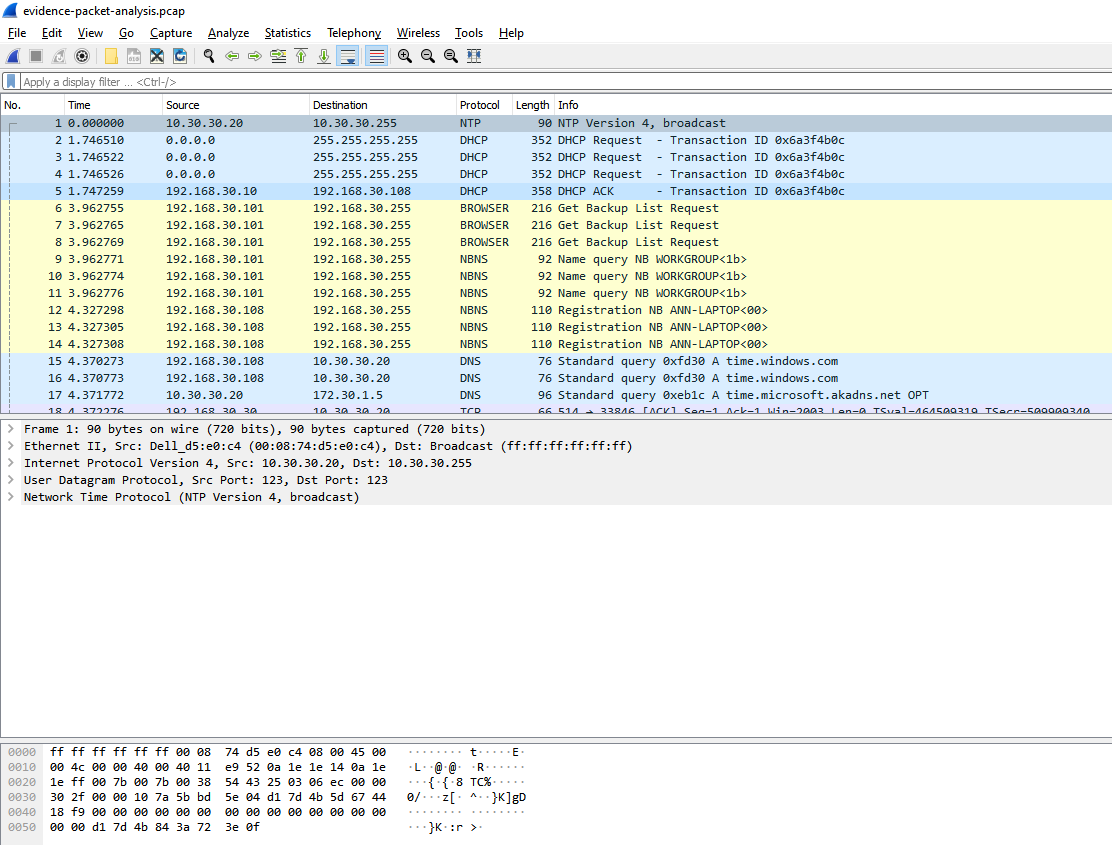
To start we will look at the Wireshark interface and start to explore different features it provides to the analyst when analysing a pcap file. In the picture below is the layout of Wireshark.
Protocol Hierarchy
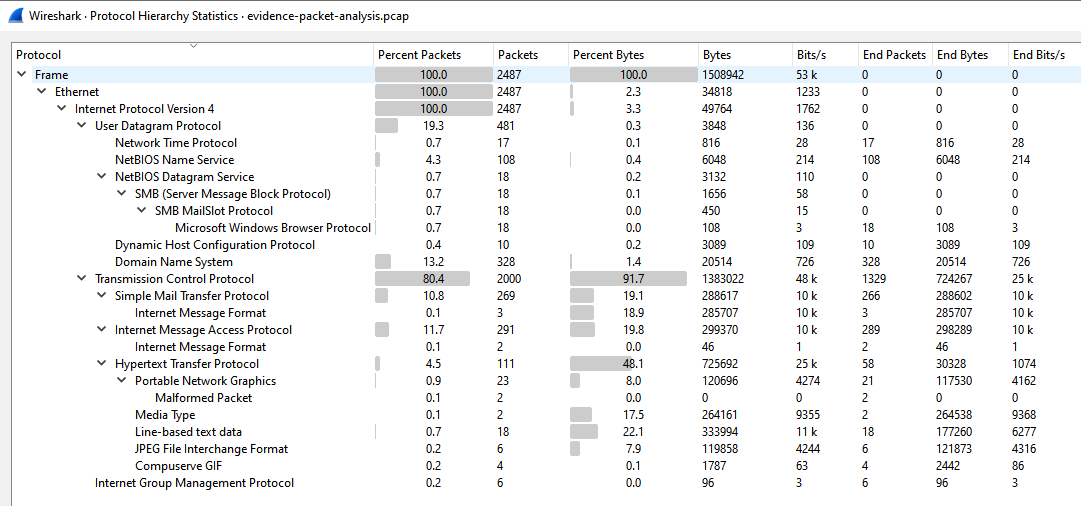
The first feature we will look at is called the Protocol Hierarchy. This provides us with a high level view of what protocols build up the captured packets within the pcap file. In the picture below we can identify some trends such as:
Data Link Layer
- 100 percent of frames are ethernet
Network Layer
- 100 percent of packets are IPv4
Transport Layer
- 19.3 percent of packets use UDP
- 80.4 percent of packets use TCP
Application Layer
- 0.4 percent of packets are Dynamic Host Configuration Protocol (DHCP)
- 13.2 percent of packets are Domain Name Service (DNS)
- 10.8 percent of packets are Simple Mail Transfer Protocol (SMTP)
- 11.7 percent of packets are Internet Message Access Protocol (IMAP)
- 4.5 percent of packets are Hypertext Markup Protocol (HTTP)
I haven't listed everything here but just to give an idea of what is portrayed.
Dynamic Host Configuration Protocol (DHCP)
Lets quickly cover what DHCP is in brief. DHCP as you can see what it stands for above is a protocol used by devices to request IP addresses from a DHCP server thus not requiring a static IP address (this is the simple version).
In this situation know what the MAC address of the computer of interest is, which is: 00:21:70:4D:4F:AE. With this knowledge we can use a filter within Wireshark to drill down into the packets.
This is the filter we will use:
All this means is we are looking for packets that have a MAC address of 00:21:70:4d:4f:ae and use DHCP.
... and voila we have identified 4 packets which we can see in the "Packet List Pane" based on our filter.
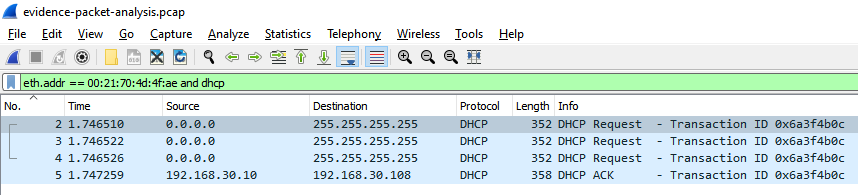
The first packet is a DHCP request and is a broadcast packet, we know this as the destination IP is 255.255.255.255 (this goes to every device on the network) and the source is 0.0.0.0 because at this point the device doesn't have an IP address assigned to it. The two subsequent are the same too.
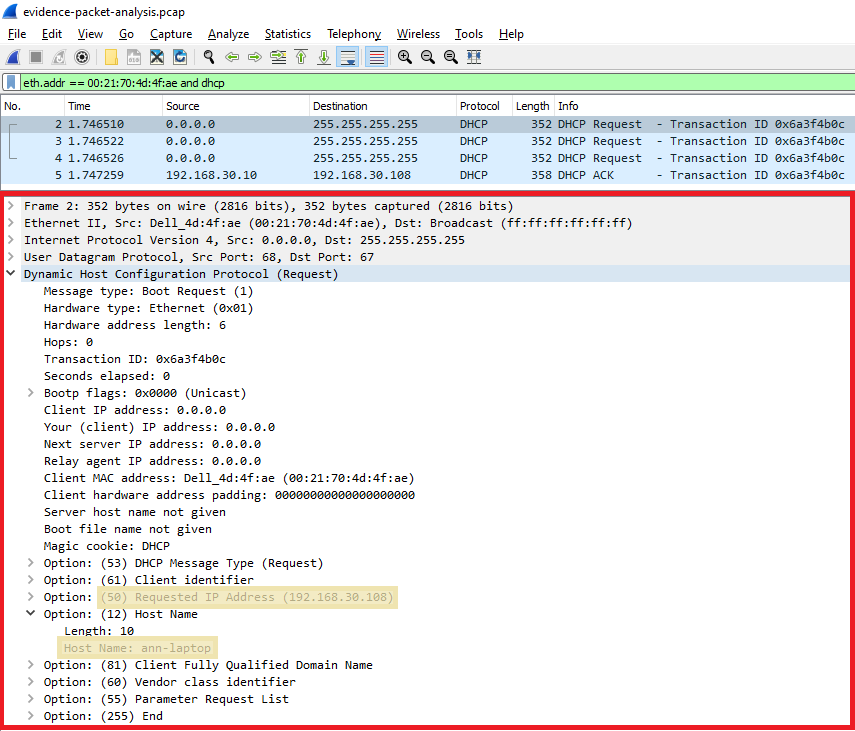
Lets take a closer look at the first packet we have filtered. We will now move into the "Packet Details Pane" which i have added a red rectangle to show.
Two things we can notice is the device is requesting the IP address 192.168.30.108 and that the requesting device has a host name of "ann-laptop"
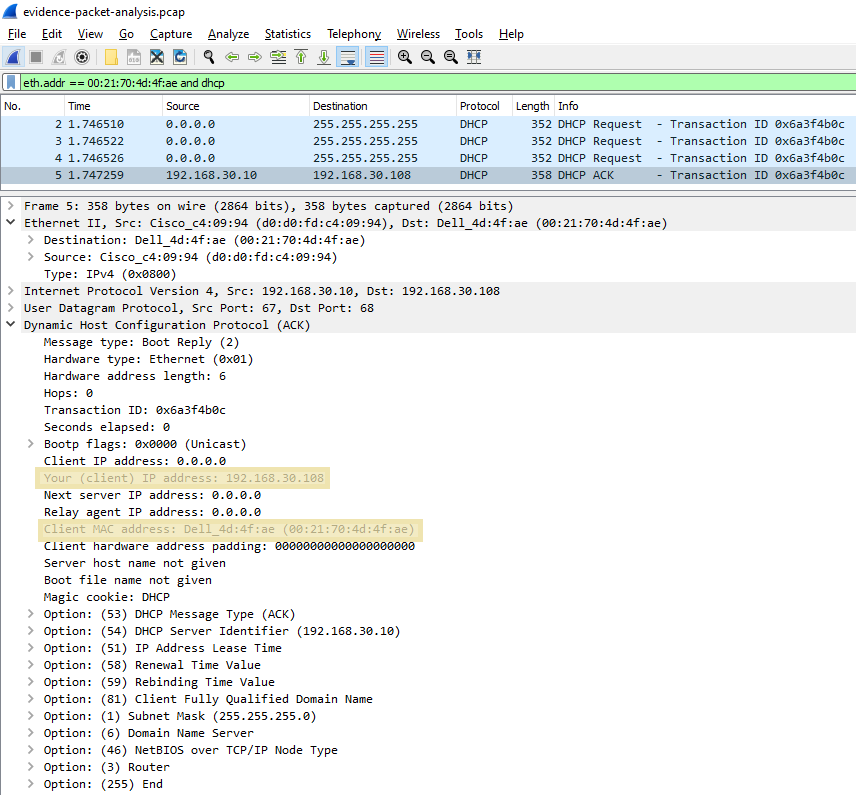
Finally the fourth packet a DHCP ACK (Acknowledgment) packet from the Packet List Pane shows the source address 192.168.30.10 to the destination address of 192.168.30.108 which was the address the DHCP request packet was requesting and seems to have been provided by the DHCP server.
We can confirm that the IP address 192.168.30.108 has been provided to the device with the MAC address 00:21:70:4d:4f:ae as it is the DHCP ACK packet as highlighted in the picture below.
Follow TCP Stream and SMTP
In this section we will be analysing SMTP traffic from a packet capture and using some other Wireshark features such as Follow TCP Stream.
This is carrying on from Chapter 4 of of the book "Tracking Hackers through Cyberspace" by Sherri Davidoff and Jonathan Ham.
Lets begin
Quickly lets talk about what SMTP is first. The guys over at GeekforGeeks put it simply below as:
SMTP is a push protocol and is used to send the mail whereas POP (post office protocol) or IMAP (internet message access protocol) are used to retrieve those mails at the receiver’s side. - GeekforGeeks
First lets find the first SMTP packet using the Display Filter section with the filter below.
Here is our output as seen from the Packet List Pane with the Display Filter section shown in green above it.
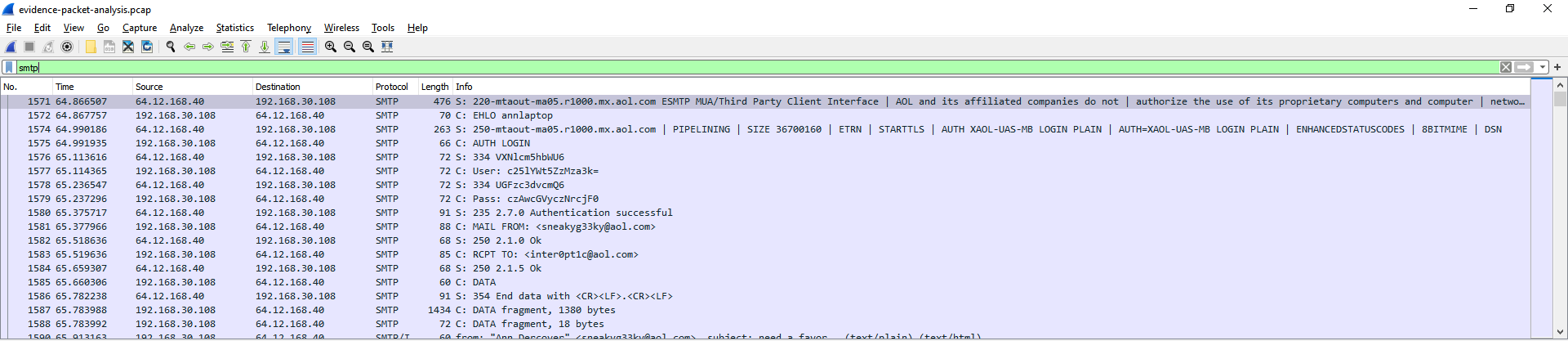
Wireshark has a great feature that allows us as to follow protocol streams such as a TCP stream between two addresses allowing us to see to see the contents of packets how it would be seen at layer 7 (Presentation Layer) of the OSI model in a easily readable format.
We will use this feature to view the TCP Stream between the IP address 192.168.30.108 we determined was assigned to the device with the name "ann-laptop" in the previous section and a new IP identified below as 64.12.168.40.
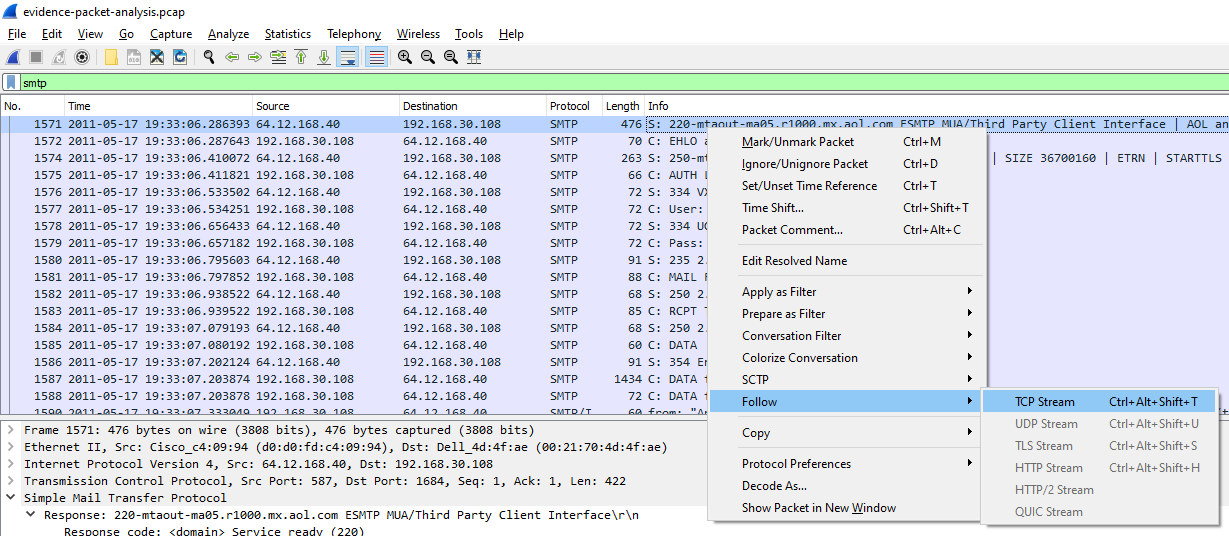
Just right click on the packet you want to view and select Follow > TCP Stream as shown below.
We can now see the flow of traffic between the two addresses which appears to be a Mail User Agent (MUA) and a Mail Submission Agent (MSA). Click here to learn more about mail terminology, which is outside the scope of this article.
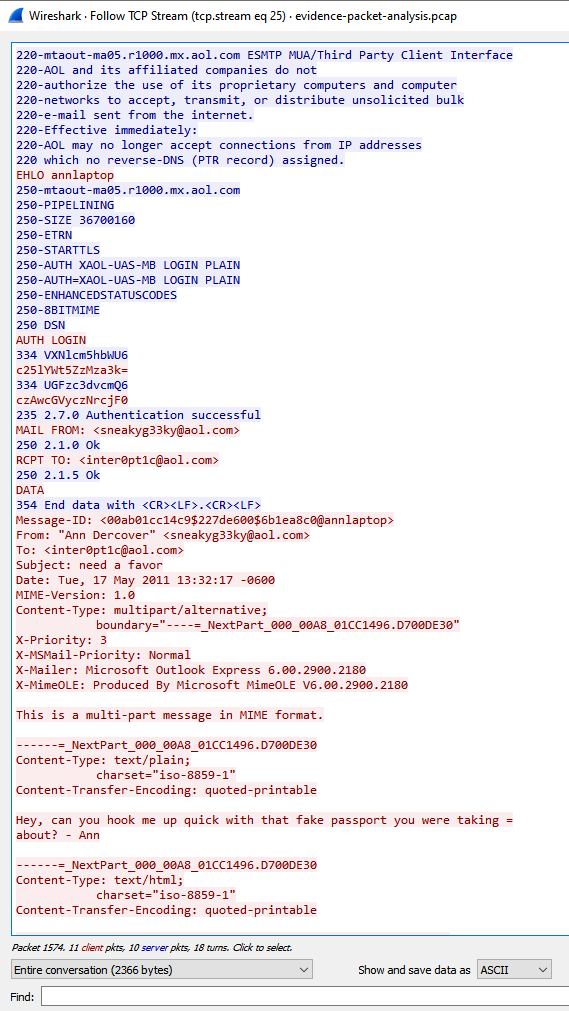
To end lets take a quick look at what's in the TCP Stream we've captured. Looking down the flow of text we can see a point where Ann's laptop is looking to authenticate with the MSA using plain text. This means the authentication process isn't encrypted and in this case is using base64 encoding which are the strings at lines 6 to 9.
250-AUTH=XAOL-UAS-MB LOGIN PLAIN
250-ENHANCEDSTATUSCODES
250-8BITMIME
250 DSN
AUTH LOGIN
334 VXNlcm5hbWU6
c25lYWt5ZzMza3k=
334 UGFzc3dvcmQ6
czAwcGVyczNrcjF0
235 2.7.0 Authentication successful
We can decode the gibberish below to identify Ann's username and password a couple of ways.
The first "technical" way you could do this is using the command line in Linux with the following command. I have left the last one blank for you to try if you like
echo "VXNlcm5hbWU6" | base64 -d
Username:

echo "c25lYWt5ZzMza3k=" | base64 -d
sneakyg33ky

echo "UGFzc3dvcmQ6" | base64 -d
Password:

echo "czAwcGVyczNrcjF0" | base64 -d
...
The second "easier and possibly quicker" way you could do it is using a website such as base64decode to decode the base64 into readable ASCII.